// Features
Everything Albert does, in one place.
Each tool feeds the next. Use them together, or only the ones you need.
// 01 — Meetings
Two ways to take part.
Albert can join and speak, or listen only.
- After the call you get a summary, the decisions, and action items with an owner and a due date where they were said.
- Nothing is shared until you review it. Share the summary, the summary and transcript, or keep it private. You can ask Albert to remove lines first.
- Notes are saved in the project as a Markdown file and emailed to you. On a team plan, one click drafts board jobs from them, and you approve each draft.
// 02 — Planning
One plan per project, with sources.
- Everything in one place: meetings, websites, notes, screenshots, files and client emails.
- Albert writes the plan and researches the web for about ten minutes. Every finding links to its source.
- You tick what goes in, then hand it on to design, build or the board.
// 03 — Design
Screens you can open in a browser.
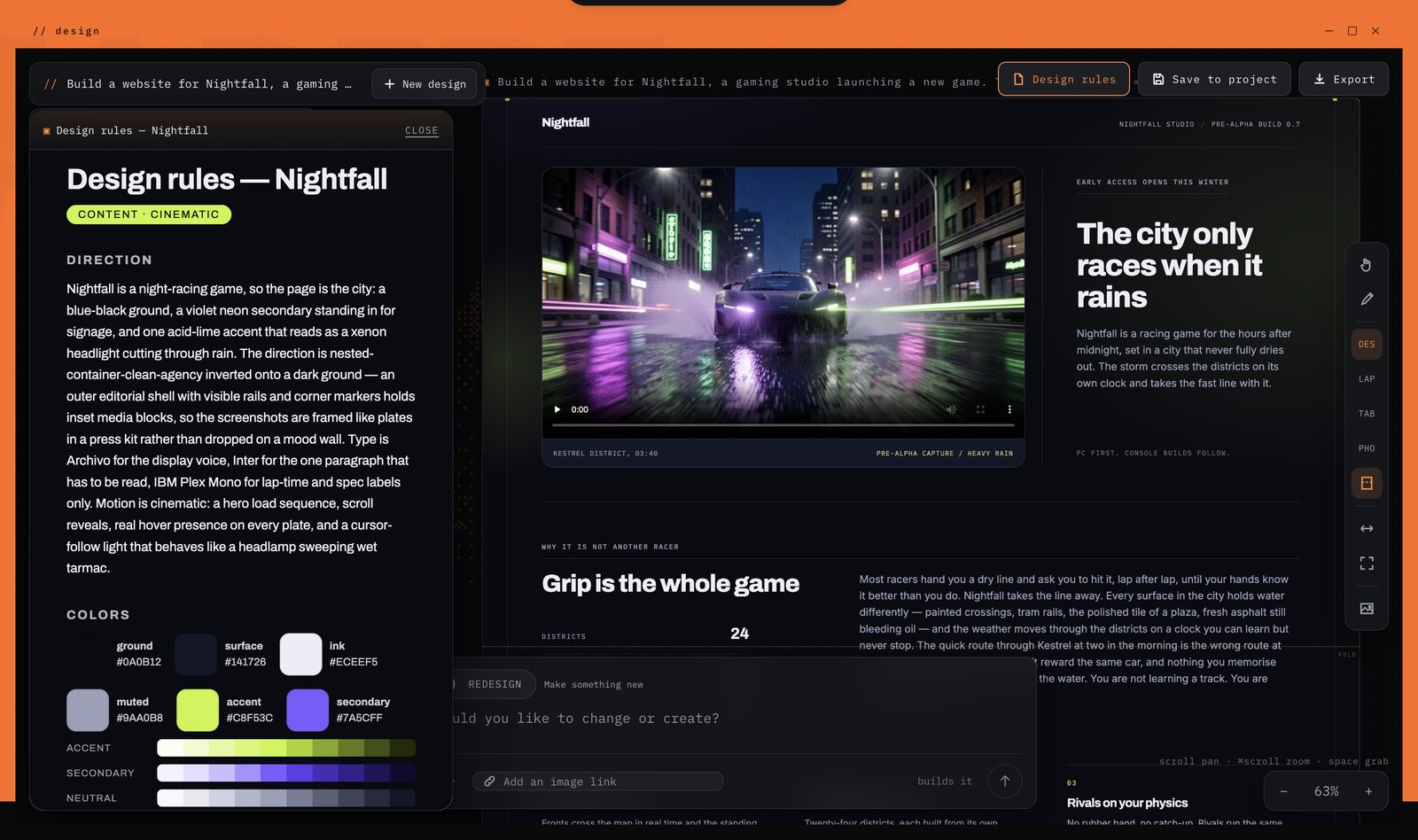
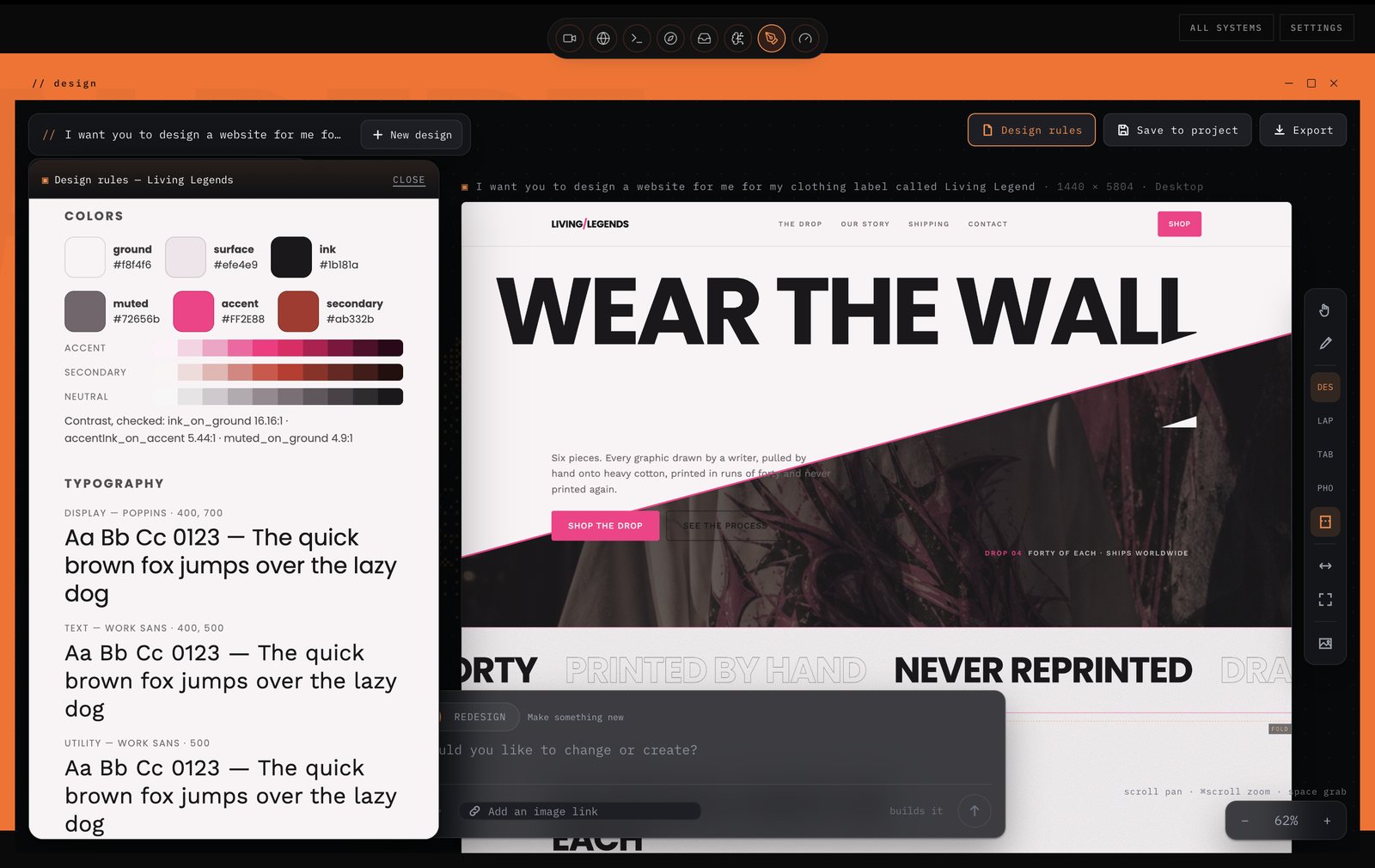
- Output is code: an HTML page with its CSS, JavaScript and images, plus a DESIGN.md with the design rules.
- Quick draft in a few minutes, or a studio design in about 15 minutes that also uses your logo, screenshots and existing site.
- The main screen first. The other screens in the site map are listed, and drawn when you ask.
- Edit by describing the change. Export any design as a zip, or save it into the project on a paid plan.
- Pictures are a switch. Turn them off for cheaper designs made of type, colour and shape.
// 04 — Build
Claude Code does the coding. You merge.
- Albert runs Claude Code on your own Claude account, in your repository on this computer.
- Always on a branch, never on main. It commits and pushes as it goes, and writes a MISSION_REPORT.md.
- Checked in a real browser. Claude Code is told to click through each feature in Chrome at several screen sizes and put the screenshots in its report.
- You see it working in a live terminal, and can type into it or take over.
- Pull requests are opened and merged from the GitHub window. When a build starts from an approved meeting, Albert opens the pull request himself and asks before merging.
- One build at a time. A cloud computer is an optional add-on so a long build can carry on with your laptop shut.
// 05 — Task board
Assign it. Track it.
- Jobs with owners, due dates and status, on one board the whole team sees.
- It keeps itself up to date from meetings, plans, designs, builds and commits — no stand-ups.
- What needs attention first: overdue, stuck, unowned, and who is carrying too much.
// 06 — Clients
Your client sees it move.
- Invite your client to a plan by email. They sign in with that address and see the plan, reference images and "Latest from the studio".
- Updates post themselves: finished designs, build screenshots and the pull request. You choose whether designs, progress and screenshots are shown.
- They approve or ask for changes, reply to updates, and can ask Albert about the plan. Their messages land in your board chat and on Telegram.
- Client emails, filed: connect a mailbox (read-only) and file emails into a project with a short summary. Albert uses them when answering.
// 07 — Demos
A demo film of your own app.
- Say what to show. Albert opens your app, signs in with a demo account and clicks through it for real.
- Narrated and edited for you: a natural voice, a camera that follows each click, music and your brand at the end.
- Private by design: names, projects and emails you mark are hidden before anything is filmed.
- Ready to share as an MP4 for your website, a pitch or a client.
// From the future
Agents that talk to each other.
Your AI, working with theirs. In Collaborate, you and another Albert AI user, a teammate or anyone you choose, share one project, and your two assistants work on it together: they research, push back on each other, book a Google Meet, and talk it through out loud. You stay in charge; they do the legwork.
- 01Invite someone with a code
- 02Their AI and yours plan together
- 03They meet only when it is needed
- 04You get the minutes and who does what
// Also in the box
The parts that make it work.
- Telegram: send Albert links, photos and voice notes for a plan, ask for a design, start, watch and stop builds, and answer his approval questions from your phone.
- Your assistant's name: call him Albert, or give him your team's own name in Settings or on your team page. He answers only to it, so two teams' assistants in one call never both reply.
- Voice: talk to Albert in the app. Speech is turned into text on your computer. A live, real-time voice is optional with a free Google Gemini key.
- Asks before sending: emails, posts and messages to other people wait for your yes.
- Privacy: personal details are hidden from AI models, and private mode keeps the AI on your computer. What is sent, and what is not.
// Ready when you are
Try it on your next project.
Free to start. No card.
Available for Mac (Apple chip) Mac (Intel) Windows